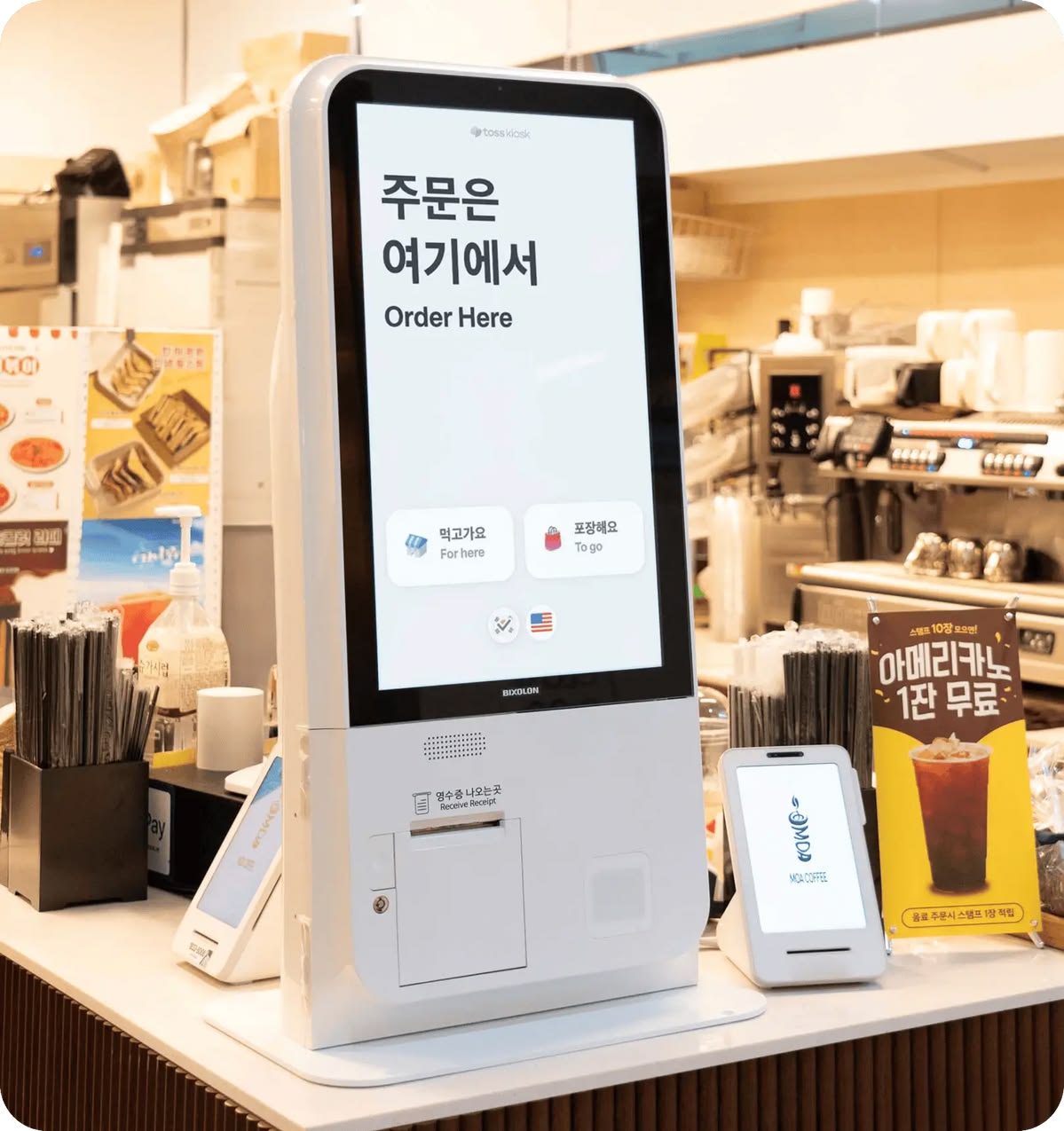

In first meetings with clients who want a kiosk built, there is one line we hear often: "We think about five screens should do it."
They are right. An ordering kiosk really does not have many screens. Menu selection, option selection, cart, payment, completion. By web service standards, that is two to three weeks of work.
Yet the actual schedule of a kiosk project is, almost without exception, much longer than that. The time does not go into building the screens. It goes into the many decisions that have to be made outside the screens: which terminal to use, which printer and card reader to attach, how to meet the accessibility standards the law requires, and who finds out when the paper runs out at 2 a.m.
This article collects the points that have repeatedly eaten up the schedule in the kiosk and unmanned-system projects we have delivered. The order follows the order of a real project. Checking these items at the planning stage removes a large share of the rework that otherwise comes after development is finished.
1. What Has to Be Decided Before the Software: Hardware
This is where a kiosk project differs decisively from an ordinary web or app project. Software can be fixed at any time, but hardware is hard to undo once it has been ordered. And a large part of the software design depends on the hardware specification.
Fix the terminal specification and OS first
Even among devices called "kiosks," what is inside varies. Some use a Windows-based industrial PC, and some use an Android-based tablet-type terminal. The share of Android terminals has been growing recently, but sites with many peripherals to integrate still often choose Windows.
This choice affects the software more than you might expect.
| Item | Windows-based | Android-based |
|---|---|---|
| Peripheral drivers | Manufacturer-provided drivers available for most devices | Depends on per-device SDKs; unsupported cases exist |
| Implementation approach | Browser kiosk mode or native app | Mainly native apps (including WebView) |
| Remote management | Existing PC management tools can be used | A separate MDM solution is required |
| Terminal unit price | Relatively high | Relatively low |
| Long-term operation | OS end-of-support dates need to be managed | Manufacturer firmware support periods tend to be short |
What is often missed here is the long-term operation item. Once installed, a kiosk is commonly used for five years or more. But for some Android terminals, the manufacturer's firmware support ends before that. Whether a terminal that no longer receives security patches can continue to be used as a payment terminal is a question to settle before installation.
The same applies to Windows. Support for Windows 10 Home and Pro ended on October 14, 2025, and the only releases that still receive updates after that are the LTSC releases, each of which follows its own lifecycle.(Microsoft Lifecycle) If the terminal manufacturer's quotation says only "Windows installed," you need to ask back for the version, the edition and the end-of-support date.
It is easy to see the edition as only a price question, but it determines how the device can be locked down. Of the kiosk lockdown features covered later, Assigned Access is available on Pro as well, but Shell Launcher, which replaces the shell with your own program, and Keyboard Filter, which blocks keyboard shortcuts, are supported only on Enterprise, Education and IoT Enterprise.(Assigned Access overview, Shell Launcher overview, Keyboard Filter) If you order the terminals with Pro and then try to run an Electron or native program as the shell, you have to start again from the licensing.
These are the criteria we look at when choosing an OS.
| Question | Leans toward Windows when | Leans toward Android when |
|---|---|---|
| Peripheral drivers and SDKs | The manufacturer provides only Windows drivers or DLLs | The manufacturer provides an Android SDK and states the target OS versions |
| Payment terminal integration | The integration module is provided as a Windows program | The payment function is built into the terminal, or an Android integration module is provided |
| Number of units and unit price | Few units and many peripherals | Many units and simple peripherals |
| Operating period | The contract period falls within the OS end-of-support date | The manufacturer confirms the security patch period in writing |
| Lockdown and remote management | An edition that supports the required lockdown features has been secured | The terminals can be enrolled as managed devices from a factory-reset state |
When the answers fall on both the left and right sides of the table, we give priority to the answers about peripherals. Screens can be built on either OS, but there is no way to attach a device that has no driver.
Fix peripherals down to the model name
A requirement that says "attach a receipt printer" is not a basis for starting development. What is needed is the manufacturer, the model name and the integration method.
The peripherals attached to a kiosk are generally the following.
- Receipt printer — paper width (58mm/80mm), whether it has a cutter, communication method (USB/serial/network)
- Card reader / payment terminal — often a terminal designated by the VAN (value-added network) provider, and the VAN provider's integration specification has to be obtained separately
- Barcode and QR scanner — reading method (laser/imager), what it reads (1D/2D)
- Camera — when used for face recognition or identity verification, lighting conditions and resolution determine the recognition rate
- Cash deposit and dispensing module — bill validators and coin dispensers are the parts with the highest unit price and maintenance burden
- NFC reader — for reading transit cards and membership cards
Of these, the payment terminal almost always sits on the critical path. The time it takes to sign a contract with the VAN provider, get the terminal approved and receive the integration specification runs separately from the development period. It takes longer when merchant screening is required. If this process is not managed side by side with the development schedule, you end up waiting for the payment integration after all the screens have been built.
The terminal itself also comes with legal requirements. The Specialized Credit Finance Business Act (여신전문금융업법) requires credit card merchants to install and use credit card terminals registered with the Financial Services Commission (금융위원회) (Article 19(3)), and provides that a terminal to be registered must conform to the technical standards set by the Financial Services Commission (Article 27-4).(Specialized Credit Finance Business Act) This is why you cannot attach a reader bought directly from overseas or an arbitrarily chosen module. The reader model is chosen from the list of registered terminals that the VAN provider supports.
Message specifications and the form of the integration module differ from one VAN provider to another, so it is advisable to obtain the items below in writing at the contract stage. The answers depend on the VAN provider and the terminal model.
- Integration method — whether it is direct serial or USB communication or a call to a daemon or library provided by the VAN provider, and the supported OS and versions
- Transaction identifier — whether the unique transaction number generated by the kiosk can be carried in the message, and limits on its length and format
- Handling of transactions that received no response — whether there is a message for querying the approval status, whether there is a separate message for cancelling a transaction that received no response, and the time window in which they can be called
- Cancellation and partial cancellation — who executes a cancellation, and on which screen, in an unmanned environment
- Test environment — whether a development merchant number and test terminal are provided, and the certification test procedure and how long it takes
- Incident contact point — the reporting channel for approval failures at night and on holidays
Measure the installation environment on site
Some things look fine on the drawings and then get stuck on site. These are the items to check.
- Power — outlet locations and capacity. Power consumption goes up when a cash module or a large display is included
- Network — whether wired cabling is possible or only wireless. If wireless, the signal strength at the installation point has to be measured. Some configurations put a separate carrier line into each terminal
- Lighting — on terminals installed outdoors or by a window, the screen may not be visible. Check the brightness specification and whether there is anti-glare treatment
- Temperature and humidity — for outdoor installation, check the dust and water protection rating and the operating temperature range. There are cases where touch response slows down in low winter temperatures
- Physical dimensions — terminal size, the path for bringing it in, wheelchair access space
State procurement lead times in the schedule
Hardware does not arrive the moment you order it. Custom-made housings (enclosures) in particular take time, because fabrication starts only after the design is approved. Put the development schedule and the hardware schedule in a single table and you can see that the start of testing is tied to the hardware delivery date.
In practice, it is advisable to secure one or two development terminals first. This lets peripheral integration development and testing proceed while you wait for the production volume. The cost is not a large share of the total budget, but its effect on the schedule is large.
Order the kickoff around integration verification
In a project that connects to hardware, the variable in the schedule is whether integration works, not the screens. When we delivered HRDK KIOSK (CBT Attendance Management) and Zero Salon KIOSK, we also confirmed the integration of the recognition equipment and the shredding unit first, and then layered the screens and operational features on top. Generalized, the order is as follows.
- Fix the requirements — Decide the type and floor area of the installation site, the terminal type, the payment methods and whether biometric information is used. The legal requirements in Section 2 branch here
- Fix the device list and OS — Decide peripherals down to the model name and check which OS their drivers and SDKs support
- Start in parallel — Start the VAN contract and receipt of the specification, the housing design and the order for development terminals in the same week. All three are tasks with long waiting times
- Verify integration — On the development terminal, reproduce one normal case and one failure case (out of paper, card read failure, communication loss) for each device. Temporary screens are enough
- Develop screens and exception flows — Apply the session, disconnection and lockdown design from Section 3. Device integration code has to be kept separate from screen logic so that the screens do not have to be rebuilt when a device is replaced
- Inspect the production terminals — Check device operation, lockdown state and versions on every delivered terminal. The firmware version sometimes differs from that of the development terminals
- Site installation and pilot operation — Install at some locations first to check lighting, network and user flow, then expand to all locations
Skipping step 4 and starting from step 5 is the most common cause of delay. If you learn that a device does not behave as expected only after the screens are complete, both the screen flow and the exception handling have to be fixed together.
2. What the Law Requires: Accessibility and Personal Information
As of 2026, kiosks are an area with clearly defined legal requirements. "We will make up for it later" does not work here, because the hardware specification itself changes.
Accessibility obligation for unmanned information terminals
Under Article 15(3) of the Act on the Prohibition of Discrimination against Persons with Disabilities and Remedy against Infringement of Their Rights (장애인차별금지 및 권리구제 등에 관한 법률), providers of goods and services that install and operate unmanned information terminals (무인정보단말기) must provide reasonable accommodation for persons with disabilities. This obligation was applied in phases, beginning with public, educational and medical institutions on January 28, 2024, and, including terminals installed before each application date, it has been in full effect since January 28, 2026.(Ministry of Health and Welfare press release, Korea Policy Briefing) As of October 2026, when this article was revised, no category remains under a grace period. The same standards apply not only to newly installed terminals but also to projects that replace or add to terminals already in operation.
The content of the accommodation to be provided is set out in Article 10-2 of the Enforcement Decree. Before the amendment of November 18, 2025, all six methods of providing accommodation had to be satisfied, but the current provision has been consolidated into two.(Ministry of Health and Welfare press release, Enforcement Decree of the Act on the Prohibition of Discrimination against Persons with Disabilities)
- Installation of an unmanned information terminal that complies with the verification standards publicly notified by the Minister of Science and ICT (과학기술정보통신부장관)
- Installation of a voice guidance device (a device that announces the location of the unmanned information terminal by voice)
The current provision cites Article 24(2) of the Enforcement Decree of the Digital Inclusion Act (디지털포용법 시행령) as the basis for the verification standards. The cited provision was changed by the amendment of December 31, 2025 (in force from January 22, 2026), so the name of the statute in documents written before then may differ from the current one. When copying the name of the statute into a request for proposal or a statement of work, check the current provision.
Exceptions are also provided. For a terminal that falls under one of the three cases below, reasonable accommodation is deemed to have been provided if an assistive device or software compatible with that terminal is installed, or if support staff are assigned and a call bell is installed (Article 10-2(3) of the Enforcement Decree).
- A terminal installed in a Class 1 or Class 2 neighborhood living facility (제1종·제2종 근린생활시설) where the total floor area used for that purpose is less than 50 square meters
- A terminal installed by a micro enterprise as defined in Article 2(1) of the Framework Act on Micro Enterprises (소상공인기본법)
- A small product publicly notified by the Minister of Science and ICT (such as table-ordering terminals)
Note that the second method requires both the assignment of staff and the installation of a call bell. Fitting a call bell alone does not satisfy the requirement of the provision.
Failure to comply constitutes an act of discrimination against persons with disabilities. A person who has suffered harm can file a petition with the National Human Rights Commission of Korea (국가인권위원회), and if discrimination is recognized, a recommendation for correction is issued. If the recommendation is not followed without justifiable grounds, the Minister of Justice (법무부 장관) may issue a corrective order, and if the corrective order is not carried out, an administrative fine of up to KRW 30 million may be imposed. At the time of full implementation, the Ministry of Health and Welfare (보건복지부) stated that it was considering applying dispositions flexibly in the early period of the system; this does not mean that the obligation is deferred.(Ministry of Health and Welfare press release)
Organized by installation site, it looks like this.
| Installation site | Method of compliance | What to check in the project |
|---|---|---|
| General sites (not covered by the exceptions below) | Terminal complying with the verification standards + voice guidance device | Whether the terminal is a verified product; the installation location and power supply of the voice guidance device |
| Neighborhood living facilities under 50 square meters, micro enterprise premises | The method above, or a compatible assistive device or software, or support staff + call bell | Documents proving that the exception applies (floor area in the building register, micro enterprise confirmation); how the site operates during hours when no staff are present |
| Small products under the public notice, such as table-ordering terminals | Same as above | Whether the product qualifies as a small product under the public notice |
At sites with no staff on the premises, such as unmanned stores, the "support staff + call bell" method is hard to use, so even a micro enterprise has to solve it on the terminal or assistive device side.
The list of verified products, the verification standards and the UI guides by type are available on the Unmanned Information Terminal UI Platform (무인정보단말기 UI 플랫폼) operated by the National Information Society Agency (한국지능정보사회진흥원).(Unmanned Information Terminal UI Platform) For a project that purchases off-the-shelf terminals, check the verification status at the quotation stage; for a project that fabricates a new housing, put the time needed for verification into the schedule.
The exact scope of application and whether an exception applies depend on the business type, floor area and terminal type of the installation site. For an actual project, we recommend checking the original text of the statutes and the interpretation of the competent ministry.
How accessibility requirements affect the design
The verification standards do not look only at the screen, so they are hard to meet with software alone. The requirements for each item have to be checked in the public notice and in the verification standards documents on the UI Platform; the items we raise in advance at the design stage are the following.
- Screen height and position of controls — The controls have to be within the reach of wheelchair users. This is decided at the housing design stage
- Voice guidance and earphone jack — A voice output path is needed for blind users. The screen reading order and focus movement rules have to be defined in the software
- Tactile keypad — A physical input method for users who have difficulty operating by touch alone
- Support for low-vision users — High-contrast mode and enlarged text. The layout has to be designed as a fluid layout from the start so that it does not break when enlarged
- Allowance for operating time — If a screen has a time limit, a means of extending it has to be provided
Of these, defining the voice guidance order causes considerable rework if it is added at the end of development, because the screen structure and the reading order are interlocked. It is better to prepare a reading script for each screen together at the planning stage.
It is also easy to overlook that the voice guidance device is an installation separate from the terminal. Because it is a device that announces the location of the terminal, its position has to be set based on the path from the entrance to the terminal, and its power supply and mounting method have to be checked together during the site survey.
The Korea Digital Accessibility Promotion Agency (한국디지털접근성진흥원) provides guidance on kiosk test evaluation, so for a project that has to obtain verification, it is advisable to check the standards in advance.
Separate standards apply if you use face recognition
More and more projects are introducing face recognition for access control or identity verification. In this case, separate requirements arise under the Personal Information Protection Act (개인정보 보호법).
Article 18, subparagraph 3 of the Enforcement Decree of the Personal Information Protection Act defines as sensitive information "information on an individual's physical, physiological or behavioral characteristics that is generated through certain technical means for the purpose of identifying a specific individual."(Enforcement Decree of the Personal Information Protection Act) This provision is unchanged in the version in force from September 11, 2026. The feature information generated by face recognition falls under it, so unless a statute separately provides a basis for the processing, you must obtain consent separately from the consent to the processing of other personal information, and must take measures to ensure security so that the information is not lost, stolen, leaked, forged, altered or damaged (Article 23 of the Personal Information Protection Act).(Personal Information Protection Act) Projects ordered by public institutions sometimes process the information on a statutory basis, in which case the consent structure may differ, so we first confirm with the client what the basis for processing is.
The Personal Information Protection Commission (개인정보보호위원회) provides guidance on protective measures for each stage of processing through its Biometric Information Protection Guide (생체정보 보호 안내서).(Personal Information Protection Commission, Biometric Information Protection Guide)
There are three key points to reflect in the design.
- Separate consent screen — Do not bundle it with other terms; build it as an independent consent step
- Provide an alternative — Users who refuse to provide biometric information must still be able to use the service. Design alternative paths such as QR or number entry alongside face recognition
- Minimize retention of original images — A design that keeps only the feature information and destroys the original without delay is typical. You need to confirm that no cache remains on the terminal
Providing an alternative is omitted especially often. If you design only the face recognition flow and are later asked "What happens if they refuse?", the screens and the data structure have to be reworked. The alternative path is not only for refusal of consent, either. Face recognition is affected by lighting, angle and mask wearing, so the same path is used when recognition fails. In HRDK KIOSK, we treated recognition failure not as an exception but as one branch of the normal flow, and built the path to retry, to manual entry on the on-screen keypad and to confirmation by a proctor into the design from the start.
Here are the items to check on the terminal side as well.
- In which paths on the terminal the captured originals and feature information remain, and for how long (temporary files, the device SDK's cache, logs)
- Whether face images or feature information are written to logs. If the logs are collected remotely, apply a stricter standard
- Whether access to the administrator screen is restricted by authentication
- How the storage is wiped when a terminal is removed, replaced or taken away for repair, and who is responsible for it
3. What Has to Be Designed Differently from an Ordinary Web Service
Even when a kiosk is implemented as a browser page or an app, its premises differ from those of an ordinary web service. A single device is used in turn by an unspecified number of people, and no staff member is beside it.
The session must be cut off
In a web service, a long-lived session is a convenience feature. On a kiosk, it is an incident. The previous user's order details or personal information must not be visible to the next user.
These are the items to reflect in the design.
- Idle timeout — Return to the initial screen when there is no input for a certain time. However, this can conflict with the accessibility requirements mentioned above, so it is safer to show an extension prompt first
- Immediate reset after the transaction completes — The timeout must also work on the payment completion screen
- Storage cleanup — Local storage, session storage, cookies and even input field autocomplete history are subject to reset
- Blocking back navigation — After a reset, it must not be possible to reach the previous user's screen with the back action
Set the timeout differently for each screen. Keep it short for steps close to the idle screen, and for steps where a payment is in progress or a device is operating, set no timeout and let the flow advance only on the device's response. If the screen resets while the card reader is waiting for a response, you get a situation where the payment went through but the order has disappeared.
If the kiosk is browser-based, check the browser's kiosk features before implementing the reset yourself. Microsoft Edge kiosk mode (version 87 or later) runs as an InPrivate session with autofill turned off, and when there is no input for the time specified with --kiosk-idle-timeout-minutes, it closes the browser and resets the session. The default is 0 (off) for the full-screen type and 5 minutes for the public browsing type. Because this option only closes the browser, Assigned Access or Shell Launcher has to take care of launching it again.(Configure Microsoft Edge kiosk mode) When the whole browser restarts, there is a gap until the initial screen appears again, so a reasonable configuration is to let the in-app timeout act first and set the browser timeout longer than that as a safety net.
Define the state in which the network is disconnected
Unmanned terminals are often installed in places where the network is unstable. If you stop at "an error appears on the screen when there is no internet," problems arise on site.
It is advisable to define the behavior segment by segment.
| Situation | Required behavior |
|---|---|
| Query request fails | Display cached data, but state the time of the last update |
| Disconnection during a payment approval request | The approval result is unknown. Prevent duplicate payment until it is confirmed by re-query |
| Order transmission fails | Store in a local queue and resend. Tell the user clearly whether the order was received |
| Prolonged disconnection | Block order intake itself and show a notice screen |
Of these, disconnection during payment approval is the most dangerous. The approval has gone through at the card company, but the kiosk has not received the response. If the user retries at this point, a double payment occurs. A procedure for re-querying the approval result by the unique transaction number must be part of the design.
Re-query procedure when the approval result is unknown
The key is not to treat "no response" as a failure. Alongside approved and declined, keep a third state, undetermined, and do not allow a new payment attempt in this state. We covered the general principles for handling timeouts in external integrations separately in Where External System Integrations Fail — Principles of Interface Design; here we write down only the procedure that applies to kiosks.
- Record before the request. Generate the unique transaction number on the kiosk and, before sending the approval request, save it to local storage in the "requesting" state. If it is kept only in memory, a power loss erases the very fact that there was a transaction whose approval status needed to be checked
- On timeout, change the state to undetermined. Show "We are checking the payment result" on the screen and remove the pay-again button and the back-to-start button. Do not tell the user to insert the card again, either
- Query the result with the same unique transaction number. What the query method is depends on the VAN provider's specification. Fix the number of attempts and the interval (for example, 5 times at 3-second intervals; these are illustrative values) and do not repeat indefinitely
- Branch on the result.
| Query result | Kiosk behavior |
|---|---|
| Approval confirmed | Confirm the order and proceed to the completion screen |
| No approval record | Close the transaction as failed and allow a new payment with a new unique transaction number |
| Query also fails | Request cancellation of the transaction by the method the specification defines, or leave the transaction on hold and notify the administrator. Show the user a notice containing the transaction identifier and a contact point |
- At startup, handle undetermined transactions first. Immediately after a reboot, before showing the idle screen, first query the "requesting" and "undetermined" items left in local storage
- Reconcile at closing. Match the kiosk's order records against the VAN provider's approval records on a daily basis, and let the operator see transactions that exist on only one side. Mismatches that pass through all of the steps above are caught here
The wording of the user notice for "query also fails" has to be decided in advance. Writing "Your payment has been cancelled" while the approval status is unknown may be untrue. It has to be a sentence consistent with the operating policy, such as "We could not confirm the payment result. If you were charged twice, the payment will be cancelled automatically," and the party that actually carries out that policy (automatic cancellation, or manual cancellation by the operator) has to be decided.
Re-query does not apply to cash payments. If a failure occurs after a bill has gone in, the records of the amount inserted and the amount returned are the only evidence, so the insert and return events of the cash module are stored locally, separately from the order records.
Keep the device from getting out of the browser
This is a common problem on kiosks implemented in a browser. If some operation exposes the browser UI or the OS screen, the terminal effectively becomes a public PC.
These are the items to check.
- Apply kiosk mode or a dedicated launcher
- Block physical keyboard shortcuts (Windows key, Alt+Tab, Ctrl+Alt+Del and so on)
- Check that touch gestures do not bring up the system UI
- Check that links shown on the screen cannot lead out to external sites
- Check that there is no path that opens a file upload or download dialog
- Block the browser context menu
If you try to block these one by one in the app code, some paths get missed. Displaying in full screen and locking at the OS level are different things, and it is safer to handle lockdown with features the OS provides. The available means differ by implementation type.
| Implementation type | Lockdown method | Conditions | Points to note |
|---|---|---|---|
| Windows + web (Edge) | Assigned Access kiosk | Pro, Enterprise, Education, IoT Enterprise. UAC must be turned on, and it does not work in a Remote Desktop session | The target is a single UWP app or Microsoft Edge. If the app is closed, it is launched again automatically |
| Windows + desktop program (Electron, .NET and so on) | Shell Launcher | Enterprise, Education, IoT Enterprise. Pro is not supported | It only replaces the shell and does not block access to other programs or system components. Configure AppLocker, Group Policy and Keyboard Filter together |
| Android native app | lock task mode | On a fully managed device, the device policy controller (DPC) adds the app to the allowlist (Android 5.0 or later) | If called without the allowlist, it enters screen pinning, which the user can release |
Assigned Access and Shell Launcher cannot be configured on the same device at the same time.(Assigned Access configuration file)
Windows lockdown configuration
Assigned Access. For one or two units, it can be done in the Settings app under Accounts > Other users > Set up a kiosk. For many units, deploy the configuration XML through MDM (AssignedAccess CSP), a provisioning package or PowerShell.(Assigned Access quickstart) The following is the Microsoft Learn example with only the address changed; on Windows 11 it launches Edge as a full-screen kiosk and resets the session after 2 minutes without input.
<?xml version="1.0" encoding="utf-8"?>
<AssignedAccessConfiguration
    xmlns="http://schemas.microsoft.com/AssignedAccess/2017/config"
    xmlns:rs5="http://schemas.microsoft.com/AssignedAccess/201810/config"
    xmlns:v4="http://schemas.microsoft.com/AssignedAccess/2021/config">
  <Profiles>
    <Profile Id="{EDB3036B-780D-487D-A375-69369D8A8F78}">
      <KioskModeApp
          v4:ClassicAppPath="%ProgramFiles(x86)%\Microsoft\Edge\Application\msedge.exe"
          v4:ClassicAppArguments="--kiosk https://kiosk.example.com/ --edge-kiosk-type=fullscreen --kiosk-idle-timeout-minutes=2 --no-first-run" />
      <v4:BreakoutSequence Key="Ctrl+A" />
    </Profile>
  </Profiles>
  <Configs>
    <Config>
      <AutoLogonAccount rs5:DisplayName="Kiosk" />
      <DefaultProfile Id="{EDB3036B-780D-487D-A375-69369D8A8F78}" />
    </Config>
  </Configs>
</AssignedAccessConfiguration>
With AutoLogonAccount, Assigned Access creates a local standard user account and signs it in automatically after a reboot. BreakoutSequence is the key combination for breaking out of the kiosk; if not specified, it is Ctrl+Alt+Del. On a terminal where a physical keyboard could be connected, change this combination and manage it so that only maintenance staff know it. Generate a new Profile Id with New-Guid.
When applying it with PowerShell, the MDM Bridge WMI Provider is used, and the script has to run under the SYSTEM account. It is not applied from an elevated administrator PowerShell, and time is often lost here. For testing, open a session with psexec.exe -i -s powershell.exe and then run it.
# Assumption: the XML above is saved as C:\kiosk\assigned-access.xml and this runs under the SYSTEM account
$xml = Get-Content -Raw -Path 'C:\kiosk\assigned-access.xml'
$obj = Get-CimInstance -Namespace 'root\cimv2\mdm\dmmap' -ClassName 'MDM_AssignedAccess'
$obj.Configuration = [System.Net.WebUtility]::HtmlEncode($xml)
Set-CimInstance -CimInstance $obj
After applying it and rebooting, the device signs in automatically with the kiosk account. To revert, set $obj.Configuration = $null in the same way and reboot. Edge kiosk mode blocks paths such as F11, F12 and opening a new window, but the file open and save dialogs are not locked automatically, so turn off the relevant shortcuts with the ConfigureKeyboardShortcuts policy and restrict the addresses that can be navigated to with the URLAllowlist and URLBlocklist policies.(Configure Microsoft Edge kiosk mode)
Shell Launcher. It launches a specified program as the shell in place of Explorer. v2, which can specify both desktop programs and UWP apps, is available from Windows 10 version 1809. What is most useful in practice is the per-exit-code action. When the program dies, you can decide by exit code whether to relaunch the shell, restart the device or shut it down.(Shell Launcher overview, Shell Launcher quickstart)
<?xml version="1.0" encoding="utf-8"?>
<ShellLauncherConfiguration
    xmlns="http://schemas.microsoft.com/ShellLauncher/2018/Configuration"
    xmlns:V2="http://schemas.microsoft.com/ShellLauncher/2019/Configuration">
  <Profiles>
    <DefaultProfile>
      <Shell Shell="%SystemRoot%\explorer.exe" />
    </DefaultProfile>
    <Profile Id="{EDB3036B-780D-487D-A375-69369D8A8F78}">
      <Shell Shell="C:\Kiosk\KioskApp.exe" V2:AppType="Desktop" V2:AllAppsFullScreen="true">
        <ReturnCodeActions>
          <ReturnCodeAction ReturnCode="0" Action="RestartShell" />
          <ReturnCodeAction ReturnCode="-1" Action="RestartDevice" />
          <ReturnCodeAction ReturnCode="255" Action="ShutdownDevice" />
        </ReturnCodeActions>
        <DefaultAction Action="RestartShell" />
      </Shell>
    </Profile>
  </Profiles>
  <Configs>
    <Config>
      <AutoLogonAccount />
      <Profile Id="{EDB3036B-780D-487D-A375-69369D8A8F78}" />
    </Config>
  </Configs>
</ShellLauncherConfiguration>
C:\Kiosk\KioskApp.exe is an example path. It is applied in the same way as Assigned Access, by putting the XML into the ShellLauncher property of the same WMI class. There are three points to note.
- The program specified as the shell must not be structured so that it launches another process and then exits itself. Shell Launcher monitors the exit of the specified process, so the moment the launcher ends, the action for its exit code is executed. If an updater launches the main program and then exits, the main program has to be specified as the shell
- The shell runs with the privileges of the signed-in account. If the auto-logon account is an administrator, the kiosk program runs with administrator privileges
- Shortcuts have to be blocked separately. Keyboard Filter suppresses combinations such as Ctrl+Alt+Del on both physical and on-screen keyboards, but it is turned off by default and does not apply to administrator accounts. It does not work when the device is booted in Safe Mode, it can be bypassed when Sticky Keys is on, and by default pressing the left Windows key five times breaks out to the sign-in screen. Change this breakout key to a different key.(Keyboard Filter)
Android lockdown configuration
On Android, the feature that corresponds to kiosk lockdown is lock task mode. In this mode, notifications and system information in the status bar are hidden, the Home and Overview (recent apps) buttons are hidden, and apps that are not on the allowlist do not run. It looks similar to screen pinning, but screen pinning can be released by the user, whereas lock task mode can be released only by the DPC or the app.(Android Developers — Lock task mode)
There is a precondition. Only the admin app (DPC) of a fully managed device can put an app on the allowlist, and to enroll a device as fully managed, it has to be provisioned from a factory-reset state, by QR code or a similar method.(Android Developers — Dedicated devices) This means that terminals already rolled out to the field with an account set up have to be reset, so provisioning has to be included in the incoming inspection procedure for terminals. Whether to build your own DPC or use an MDM solution is also decided at this point.
// Assumption: code on the DPC (admin app) side; the kiosk app package is com.example.kiosk
val dpm = context.getSystemService(Context.DEVICE_POLICY_SERVICE) as DevicePolicyManager
val admin = ComponentName(context, KioskAdminReceiver::class.java)

dpm.setLockTaskPackages(admin, arrayOf("com.example.kiosk"))

// Android 9 (API 28) or later: specify the system UI allowed while locked. NONE turns off even the power menu.
dpm.setLockTaskFeatures(admin, DevicePolicyManager.LOCK_TASK_FEATURE_NONE)
// Assumption: the kiosk app's Activity. Lock only when the app is on the allowlist.
override fun onResume() {
    super.onResume()
    val dpm = getSystemService(Context.DEVICE_POLICY_SERVICE) as DevicePolicyManager
    if (dpm.isLockTaskPermitted(packageName)) {
        startLockTask()
    }
}
If the isLockTaskPermitted check is left out, startLockTask() behaves as screen pinning on a terminal that has not been provisioned. It looks locked from the outside and so passes inspection, and then shows up in the field when a user releases it. Another option is to set android:lockTaskMode="if_whitelisted" on the Activity in the manifest so that it locks automatically when it is on the allowlist.
If setLockTaskFeatures() has never been called, the default is a state in which only the menu shown by long-pressing the power button is enabled. On a public terminal this menu can be used to turn the power off, so turning it off is the right choice, but then the means of restarting the terminal on site disappears with it. Secure a means of remote restart first, and then turn it off. Lock task mode should not be started while the lock screen is showing, and to prevent other apps from showing toasts or overlays, add the DISALLOW_CREATE_WINDOWS restriction in the DPC.
Also decide how to release the lock remotely. On Android 6.0 or later, the lock is released when the DPC removes the package from the allowlist. This is the path used when maintenance staff need to get into the settings screen on site.
Reflect the exceptions of an unmanned environment in the screens
Situations that would be resolved with a word when a staff member is nearby simply block the user in an unmanned environment.
- When receipt paper runs out — proceed with the payment, but provide an alternative to the receipt (on-screen QR, text message)
- When the printer paper jams — stop the transaction and notify the administrator
- When the cash module is short of change — disable that payment method
- When card reader recognition fails repeatedly — guide the user to another payment method
- Out-of-stock items — block the selection itself and show the reason
Organizing these situations along two lines, the screen to show the user and the alert to send the administrator, lets you design them without gaps.
4. After Deployment Is the Longer Part: Operations Design
Once development is finished and the terminals are installed, the project looks as if it has ended, but in reality the long part starts here. A kiosk built without considering what comes after installation keeps consuming operations staff.
Terminal status has to be visible remotely
This is the information you need to be able to know without going to the site.
- Online/offline status of the terminal and the time of the last communication
- Software version
- Peripheral status (printer paper, remaining amount in the cash module, card reader response)
- Recent error history
- Number of successful and failed transactions
The important point here is that the system, not the user, has to be the first to know about a failure. A structure in which you learn of a failure from a customer's phone call is already too late. The basic structure is that the terminal reports its status periodically and an alert is raised when no report arrives for a certain time. We covered how to handle disconnection and state mismatch in more detail in Operating IoT Systems Installed in the Field — Disconnections, State Mismatch, and Remote Management.
Send only the alerts the recipient can act on. If things store staff should resolve, such as low paper, and things the maintenance vendor should resolve, such as an unresponsive card reader, are sent through the same channel, before long nobody looks at it. You also have to prevent the same failure from being sent repeatedly until it is recovered. We covered the structure for controlling duplicate and excessive sending in The Point Where Notifications Start Getting Ignored — Designing a Delivery System.
Keep logs as files on the terminal, and write the terminal identifier, the software version and the current step on every line. Most field problems cannot be reproduced, so the records alone have to be enough to narrow down which version on which terminal stopped at which step. As noted in Section 2, personal information and biometric information are not written to logs.
Remote updates have to come with rollback
When terminals are spread across many locations, updates cannot be handled by site visits. A remote deployment system is needed.
- Staged rollout — Instead of deploying to all terminals at once, apply to some terminals first and verify
- Rollback path — When the new version has a problem, it must be possible to return to the previous version
- Deployment time window — Make sure transactions are not cut off by an update during business hours
- Version enforcement — Define the behavior when the server and terminal versions do not match
Remote deployment without a rollback path is dangerous. If the only way to revert a terminal that has a problem is a site visit, you become reluctant to deploy at all, and in the end updates are put off.
There is one more premise that matters more as the number of units grows. Every terminal has to run the same build, and values that differ per terminal have to be separated into configuration. In Zero Salon KIOSK, where we delivered more than 200 units, we also took it as a premise that the same build is deployed to every device and that differences live in configuration, not in code. Once builds start to diverge by location, you cannot trace which terminal had the problem, and staged rollout and rollback lose their meaning as well.
We set the procedure for a single deployment as follows.
- Install on the verification terminal in the office and check peripheral operation and lockdown state
- Deploy first to a small number of field terminals (at locations that are easy to reach)
- For a day or more, compare the number of successful and failed transactions and the error logs with the previous version
- If there is no anomaly, expand to all terminals; if there is, return to the previous version and then identify the cause
- After the deployment is finished, pull the list of terminals whose version has not come up and identify the cause. It has to be possible to tell whether the terminal was turned off, the network was disconnected or the installation failed
Making sure an update does not start while a transaction is in progress is also the app's responsibility. Start the installation only in the idle screen state, and open the idle screen only after rechecking the peripheral connections right after installation.
Decide the incident response procedure at the contract stage
This is where the most friction arises in the operations phase. These are the items to settle in advance.
| Item | What to decide |
|---|---|
| Incident severity | Transactions impossible / some functions limited / minor |
| Response time | Initial response time and target recovery time by severity |
| Contact structure | First point of contact, escalation path, night and holiday response |
| On-site dispatch | Dispatch conditions, who bears the cost, time required |
| Parts replacement | Division of responsibility between consumables (paper) and parts (printer head) |
| Log retention | Retention period and how logs are provided |
In particular, the distinction between consumables and parts leads to disputes if it is not stated. It is better to settle at the level of the contract who refills the receipt paper and who is responsible when the printer breaks down.
Dividing incident severity by impact rather than by symptom makes the judgment faster. The following is the classification we use as a first draft; response times are set in the contract according to the number of sites and the dispatch distance.
| Severity | Criterion | Examples | First action |
|---|---|---|---|
| Transactions impossible | No transaction can be completed on the terminal | App not starting, complete failure of payment approval, prolonged network disconnection | Remote restart and log check; dispatch if not recovered |
| Some functions limited | Transactions are possible because a workaround exists | Receipt printer failure (replaced by on-screen QR), cash module disabled | Turn the function off remotely and show a notice; replace at the regular visit |
| Minor | No effect on transactions | Wording error, missing image | Include in the next deployment |
It is also common for the scope of a kiosk to grow during operation. Changes in which hardware and certification are entangled, such as adding a payment method, replacing a peripheral or reinforcing accessibility, must not be accepted through the same procedure as a screen modification. We have set out the structure for handling change requests in How Scope Grows in SI Projects and How to Design Change Management to Contain It.
Provide an emergency call method
Unmanned operation does not mean that people never intervene. A path is needed for the user to be connected to someone when they get stuck. Decide which to provide among on-screen customer center information, a physical call button and remote support by an administrator, and state the operating hours of that channel.
5. Pre-Kickoff Checklist
We have put everything so far into a form you can use for an actual check. Please confirm that these items are fixed after planning is finished and before development starts.
Hardware
- Terminal manufacturer, model, OS version and edition fixed; OS end-of-support date checked
- Peripheral list fixed down to the model name, and the OS supported by drivers and SDKs checked
- VAN provider for the payment terminal selected and integration specification obtained; registered terminal status checked
- On-site measurement of power, network, lighting and dimensions at the installation site completed
- Dates for securing development terminals and for delivery of production units reflected in the schedule
Regulation
- Method of accessibility compliance decided for each installation site (general / exception applies) and documents proving the exception obtained
- Approach to meeting the Ministry of Science and ICT verification standards decided (including the hardware specification)
- Installation location and power supply of the voice guidance device checked
- Reading order and scripts for voice guidance defined
- Separate consent screen designed if biometric information is used
- Alternative authentication path designed for those who do not provide biometric information
- Storage location and destruction timing defined for original images, feature information and logs that remain on the terminal
Software
- Idle timeout for each screen and the extension prompt method decided
- List of items to reset at session end defined
- Behavior for each network disconnection segment defined
- Re-query procedure designed for disconnection during payment approval (undetermined state, number of queries, notice wording and responsible party when the query fails)
- Recovery of undetermined transactions after reboot and the daily closing reconciliation method defined
- OS-level lockdown method decided (Assigned Access / Shell Launcher / lock task mode) and shortcut blocking checked
- Unlock method for maintenance staff and how the breakout key is managed decided
- Screens and alerts defined for each peripheral exception
Operations
- Terminal status monitoring items defined
- Remote deployment and rollback procedure established; per-terminal differences separated into configuration
- Means of remote restart secured
- Incident severity levels and response times agreed
- Division of responsibility for consumables and parts stated
- Emergency call method and operating hours fixed
Closing
The cause of schedule slippage in a kiosk project is usually not the difficulty of development. It is that hardware delivery is late, that approval of the payment integration is delayed, or that accessibility requirements are confirmed late and the housing has to be made again.
They have something in common. All of them are items that could have been checked before development started. Simply going through the checklist above once before drawing the screen design document lets you bring a large part of this forward.
We have built kiosks that run in unmanned operating environments, such as HRDK KIOSK (CBT Attendance Management) for identity verification at test centers and Zero Salon KIOSK, of which we delivered more than 200 units. If you are preparing a project in which payment, recognition and field operations are intertwined, please feel free to contact us.
Related Articles
- Where External System Integrations Fail — Principles of Interface Design
- Operating IoT Systems Installed in the Field — Disconnections, State Mismatch, and Remote Management
- How Scope Grows in SI Projects and How to Design Change Management to Contain It
References
- Ministry of Health and Welfare, "Mandatory 'Barrier-Free Unmanned Information Terminals' Take Full Effect (Jan. 28)," press release (January 28, 2026) (in Korean) — https://mohw.go.kr/board.es?act=view&bid=0027&list_no=1488863&mid=a10503010100
- Korea Policy Briefing, "Mandatory Installation of Unmanned Information Terminals Accessible to Persons with Disabilities Takes Full Effect" (January 28, 2026) (in Korean) — https://www.korea.kr/news/policyNewsView.do?newsId=148958690
- Ministry of Health and Welfare, "Barrier-Free Kiosks: Strengthening the Right of Persons with Disabilities to Access Information through Reasonable Regulatory Improvement," press release (November 11, 2025) (in Korean) — https://www.mohw.go.kr/board.es?mid=a10503000000&bid=0027&list_no=1487865&act=view
- Korean Law Information Center, Enforcement Decree of the Act on the Prohibition of Discrimination against Persons with Disabilities and Remedy against Infringement of Their Rights (Presidential Decree No. 36728, in force from October 2, 2026), Article 10-2 and Attached Table 2-2 (in Korean) — https://www.law.go.kr/법령/장애인차별금지및권리구제등에관한법률시행령
- National Information Society Agency, Unmanned Information Terminal UI Platform (in Korean) — https://www.kioskui.or.kr
- Korean Law Information Center, Personal Information Protection Act (in force from September 11, 2026), Article 23 (in Korean) — https://www.law.go.kr/법령/개인정보보호법
- Korean Law Information Center, Enforcement Decree of the Personal Information Protection Act (Presidential Decree No. 36671, in force from September 11, 2026), Article 18 (in Korean) — https://www.law.go.kr/법령/개인정보보호법시행령
- Personal Information Protection Commission, Biometric Information Protection Guide (December 30, 2024) (in Korean) — https://www.data.go.kr/data/15142329/fileData.do
- Korean Law Information Center, Specialized Credit Finance Business Act, Articles 19 and 27-4 (in Korean) — https://www.law.go.kr/법령/여신전문금융업법
- Microsoft Lifecycle, Windows 10 Home and Pro — https://learn.microsoft.com/en-us/lifecycle/products/windows-10-home-and-pro
- Microsoft Learn, Assigned Access Overview — https://learn.microsoft.com/en-us/windows/configuration/assigned-access/overview
- Microsoft Learn, Quickstart: Configure a Single-App Kiosk With Assigned Access — https://learn.microsoft.com/en-us/windows/configuration/assigned-access/quickstart-kiosk
- Microsoft Learn, Create an Assigned Access configuration file — https://learn.microsoft.com/en-us/windows/configuration/assigned-access/configuration-file
- Microsoft Learn, Shell Launcher Overview — https://learn.microsoft.com/en-us/windows/configuration/shell-launcher/
- Microsoft Learn, Quickstart: configure a single-app kiosk with Shell Launcher — https://learn.microsoft.com/en-us/windows/configuration/shell-launcher/quickstart-kiosk
- Microsoft Learn, Keyboard Filter — https://learn.microsoft.com/en-us/windows/configuration/keyboard-filter/
- Microsoft Learn, Configure Microsoft Edge kiosk mode — https://learn.microsoft.com/en-us/deployedge/microsoft-edge-configure-kiosk-mode
- Android Developers, Lock task mode — https://developer.android.com/work/dpc/dedicated-devices/lock-task-mode
- Android Developers, Dedicated devices overview — https://developer.android.com/work/dpc/dedicated-devices