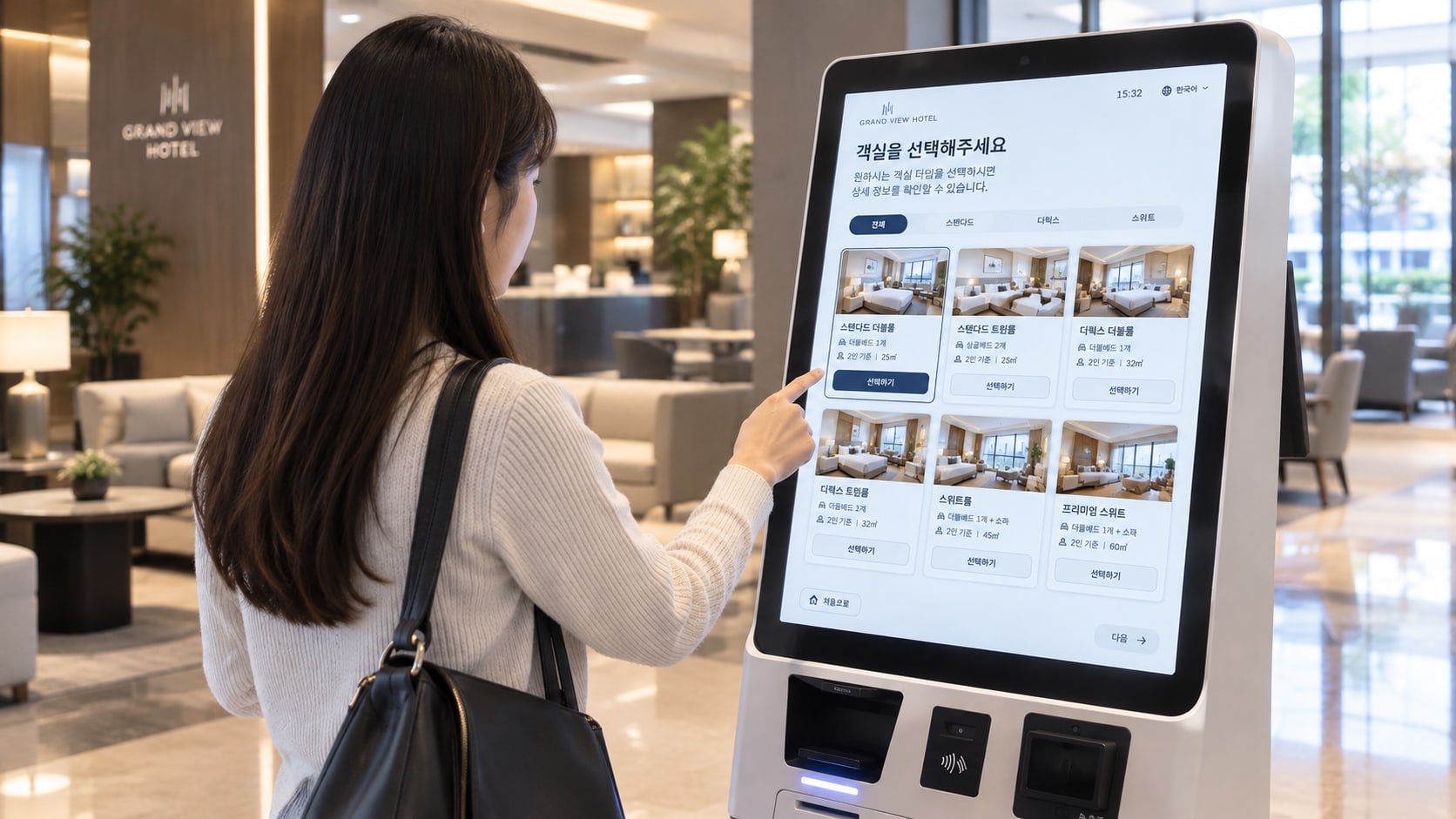

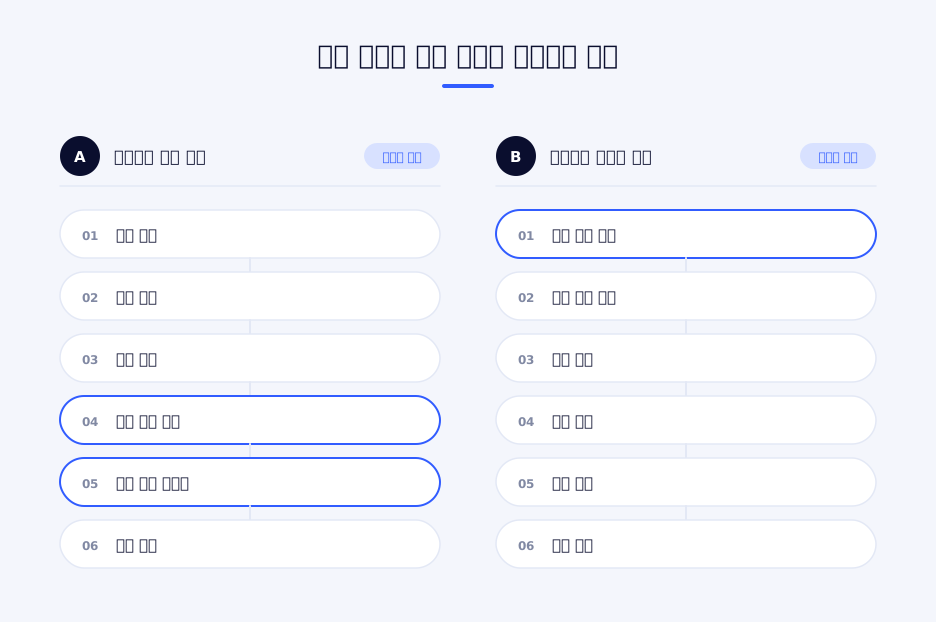
In the deliverables list of a kiosk project, the screen design document comes first. As a result, development often starts with the screens too. The idle screen is built, then the selection screen, then the payment screen, and the devices are attached at the very end.
We reverse this order. Before drawing any screen, we first confirm that we can communicate with the devices. The point where a kiosk schedule falls apart is almost always device integration, and the later those problems are found after the screens are finished, the more they cost.
This article is based on three kiosks we have built.
| Project | Installation environment | Attached devices | Configuration |
|---|---|---|---|
| Test center identity verification kiosk | CBT test centers for national qualification exams | Identity verification equipment, external exam operation system | Windows desktop app (Electron) |
| Unmanned plastic cup collection kiosk | Cafes, shopping arcades and public facilities; more than 200 units | Shredding unit | Android app (React Native) |
| Lodging self check-in kiosk | Lobbies of lodging facilities | Payment terminal (VAN), ID card camera, door lock | Android app + web screens |
Items to check before kickoff, such as hardware selection and accessibility regulations, are covered separately in the kiosk deployment checklist. This article is about the next stage: the order in which we actually developed and how we structured the system.
1. Development order: verify device integration first
Whether integration works is the biggest variable in the schedule
The devices in the three projects were all connected in different ways.
| Device | Connection method | What we checked first |
|---|---|---|
| Identity verification equipment | The app directly calls a native library provided by the manufacturer | Does the library call finish reliably, and how long does a single read take? |
| Shredding unit | Commands sent and status received over serial communication | In what order do the signals arrive, and are there duplicates or omissions? |
| Payment terminal | The app calls the VAN provider's payment program installed on the terminal | What has to be checked before requesting approval, and which codes come back on failure? |
The answers to these questions are hard to get from documents alone. An integration specification describes normal behavior, and what actually eats up the schedule is behavior that is not in the specification. How long to wait when a device does not respond, whether the same signal arrives twice, and in which situations an error code actually occurs can only be learned by putting the device on a desk and calling it.
For the test center kiosk, the first thing we verified in the four-month schedule was the equipment library call, and we finalized the rest of the schedule only after seeing the call work reliably. For the collection kiosk as well, we first secured the part that exchanges commands with the shredding unit over serial communication, and then placed the screens on top of it.
The order we follow
- Standalone device verification — With minimal code that calls only the device and no screens, we check normal operation, failure and no response
- Defining the device boundary — We decide which operations the screens can request from the device and the format of the results they get back
- Defining the flow — We decide the steps from idle to completion and the conditions for moving between steps
- Implementing the screens — At this point, the screens become a matter of putting a display on a flow that is already defined
- Operational features — Remote updates, logs, administrator access, device identification
- On-site adjustment — We reflect problems that only show up at the actual installation site
The numbers obtained in step 1 become the design values for the later steps. If the equipment takes 5 seconds to read, the progress screen has to be built to hold up for that long, and the timeout has to be set comfortably longer than that. If the screens are built first without knowing these numbers, the screen composition has to be reworked later.
2. Put a boundary between the screens and the devices
The screens do not know about the devices
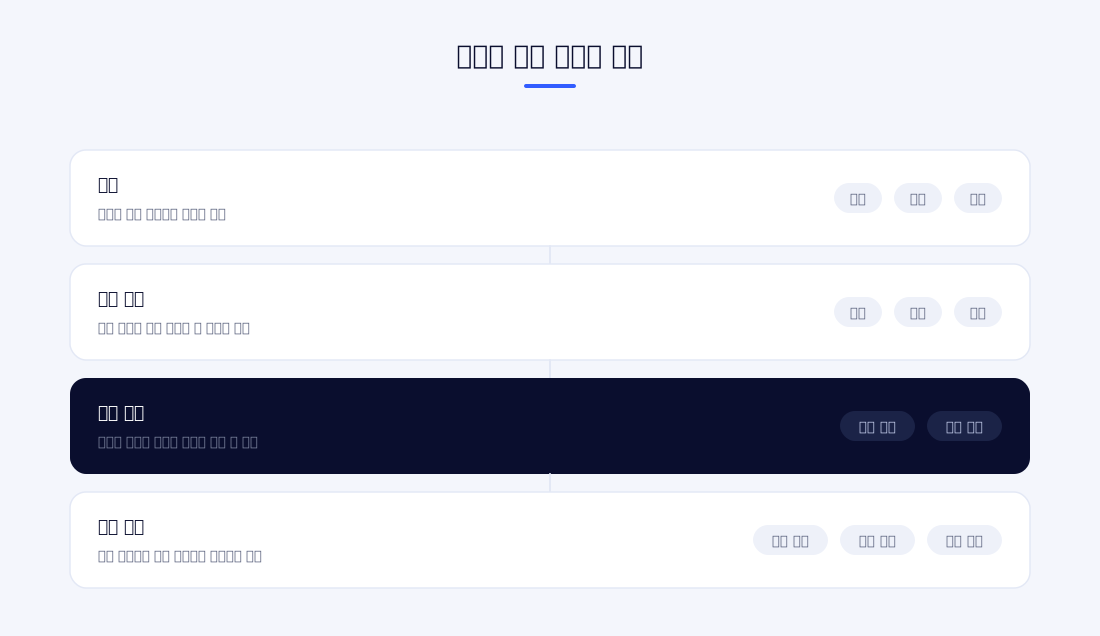
In all three projects, the screen code does not call the devices directly. A screen requests an operation such as "start identity verification" or "request payment" and gets back whether it succeeded and the resulting values. The device's function names and communication formats exist only inside the boundary.
The reason for this separation is that devices change. Test center equipment may be replaced with a different model depending on procurement, and the integration method for a payment terminal differs depending on the VAN provider under contract. Without a boundary, the entire screen flow has to be rechecked whenever a device changes. With a boundary, only the inside is changed and the screens are left as they are.
Device calls run in a separate process
In the test center kiosk, the identity verification equipment is controlled through a native library provided by the manufacturer. We do not make this library call directly from the main app. Instead, we launch a separate process for each read and run the call inside it.
When an error occurs, a native library sometimes terminates the whole process instead of throwing an exception. If it is called from the main app, the kiosk screen disappears at that moment, and in an unattended environment the equipment stays down until someone comes and turns it back on. With the call isolated in a separate process, even if something goes wrong on the device side, only that process is terminated, and the app receives a "read failed" result and moves on to the failure screen.
The timeout is also applied at this boundary. If the read process does not finish within 15 seconds, it is forcibly terminated and treated as a failure. Even if the device hangs without responding, the screen always moves on to the next step after 15 seconds.
Keep system privileges away from the screens
A kiosk is equipment handled by the general public. Work that requires system privileges, such as device control, file access and power-off, is performed only by the side that holds those privileges, not by the side that draws the screens, and the screens only send requests through a defined channel.
The lodging check-in kiosk applies the same principle in a different form. The screens are built as web pages, and the Android app displays those screens while taking charge of the payment terminal and the camera. The screens are on the web because wording and layout changes are frequent, and the devices are in the app because the web cannot access devices directly. When a web screen requests a payment, the app communicates with the terminal and then returns the result to the screen.
3. Do not trust device signals as they are
Connecting the signals a device sends straight to screen state causes problems. These are the rules we applied in common across the three projects.
| Rule | Where it was applied | If it is not followed |
|---|---|---|
| Put a timeout on every call | Identity verification 15 seconds, payment request 3 minutes, status query 15 seconds | When the device hangs, the screen hangs with it |
| Make only one request at a time | New payment requests are rejected while a payment is in progress | It is impossible to tell which request a response belongs to |
| Clean up duplicates and out-of-order signals | Shredding unit signals are received as an event stream, cleaned up, and then reflected on the screen | The progress indicator jumps or quantities are counted twice |
| Check for the end of received data | Read the length first and wait until that much data has arrived | Errors occur while interpreting truncated data |
One at a time
If a second request goes in while we are waiting for a response to a request sent to the payment terminal, there is no way to tell which request the returned response belongs to. So if a request is in progress, a new request is rejected immediately as "processing".
We add one more thing here. If the response never arrives, the "in progress" flag is never cleared, and every subsequent payment is rejected. So a request that has had no response after 45 seconds cleans itself up. When you apply a lock, you have to design for the case where that lock is never released.
Signals are duplicated and arrive out of order
Signals coming in from the shredding unit over serial communication sometimes arrive twice with the same content and sometimes arrive out of order. If these signals are connected to the screen as they are, the "inserted quantity" goes up by two at a time, or the completion indicator appears before the progress indicator.
In the collection kiosk, device signals are received as an event stream, duplicates are filtered out, the order is corrected, and only then are they passed on as screen state. The quantity shown on the screen leads directly to points, so without this cleanup step a display error becomes a settlement error.
Data arrives in pieces
The test center kiosk exchanges the list of examinees with an external exam operation system over a TCP socket. There is no guarantee that data sent over a socket arrives all at once. If the list is long, it comes in as several fragments.
So a 4-byte length value is prepended to every message, and the receiving side reads the length first, waits until that much data has arrived, and then interprets it. In the development environment the list is short and always arrives at once, so the problem does not show up even without this handling. It is the kind of error that first appears at a real test center with many examinees.
4. Screen flow: one decision per screen
Make the flow run in one direction
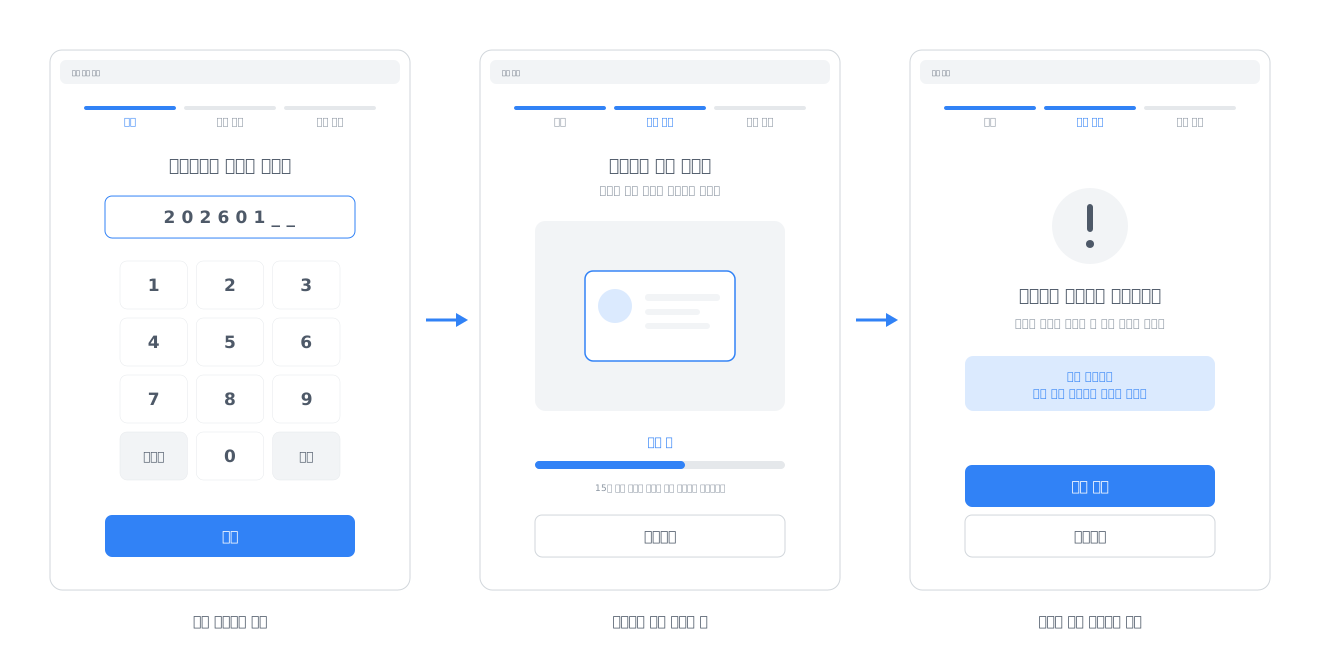
The screens of the test center kiosk follow this order.
Idle → Enter exam information → Guide on how to place the ID card → Consent to collection → Read → Success or failure → Seat guidance → Idle
Each screen has only one role. The input screen only takes input, and the guidance screen only gives guidance. An examinee right before a test is nervous, and if there are two or more things to decide on one screen, they stop right there. When one person stops, the whole line behind them stops.
Manage the current step in one place
If each screen separately records "where to go next", going back and returning to the start begin to behave differently from screen to screen. In the test center kiosk, the progress steps are defined as three steps (input, identity verification and seat guidance), and the step is changed only through three actions: next, previous and reset. Whichever screen reset is pressed on, it returns to the same point.
Take exceptions out of the line
If a read fails, the kiosk moves to a failure screen and guides the user to try again or ask the staff. The reason we do not let failures keep retrying inside the read screen is that, during busy periods, the overall throughput is determined by the one person who takes the longest rather than by the average processing time.
The same principle is applied to the input step. If a lookup by examinee number matches more than one person, a selection dialog is shown, and if it matches no one, a notice dialog is shown. The normal path is kept short, and exceptions are handled on separate screens.
Input in an environment without a keyboard
A kiosk has no keyboard. To take an 8-digit examinee number or a 13-digit resident registration number, we built an on-screen keypad as a separate component. It is a simple layout with only digits, reset and back. The lodging kiosk uses the same kind of keypad for looking up reservation numbers and phone numbers.
A screen the user has left returns on its own
The most common problem with unattended equipment is that the previous user walks away while still on an intermediate screen. This matters especially for screens that display personal information.
- Seat guidance screen of the test center kiosk — returns to the idle screen after 10 seconds
- Check-in completion screen of the lodging kiosk — returns after 30 seconds
- Collection kiosk — returns to the idle screen from any screen if there is no interaction for a set time
The return time is set to the time needed to read the information shown on the screen. Ten seconds is enough for a seat number, but a room number and an entry passcode need time to be photographed or written down.
5. Payment terminal: an ambiguous state is harder than a failure
Payment is the most demanding device in a kiosk. Failure is easy to handle. What is hard is a state where you cannot tell whether it succeeded.
Check before requesting approval
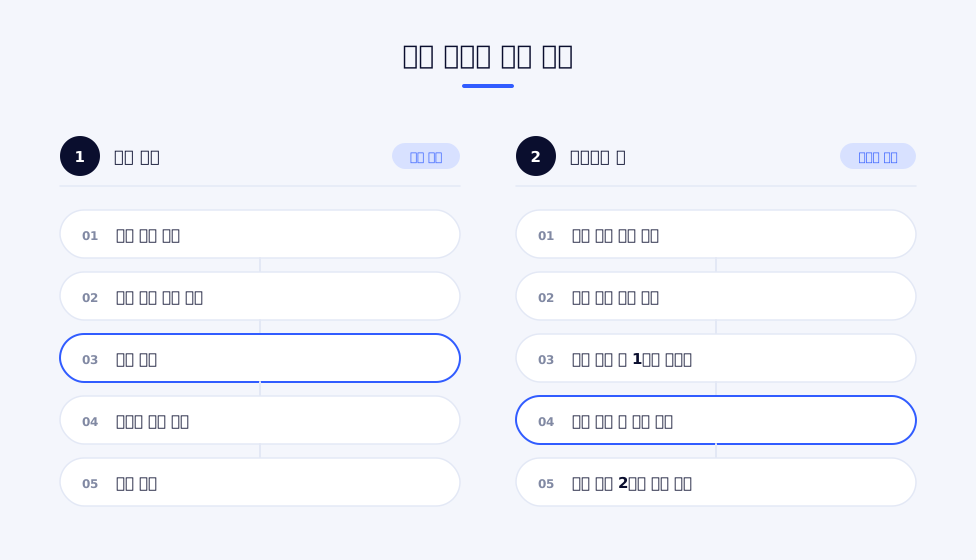
The lodging kiosk does not send an approval request right away. It first checks that the card reader responds, then checks that the terminal is in a state where transactions are possible, and only then requests approval. If an approval request is sent while the reader is not responding, the user waits with the card inserted until the timeout expires. If this is caught in the check, the kiosk can tell the user within a few seconds that "card payment is not available right now".
Attempt recovery from a communication error only once
When a communication error with the terminal occurs, the kiosk performs a defined recovery procedure (resetting communication, initializing the reader, rechecking the reader) and then retries the payment only once. The count is limited to one because this is a payment. Retrying several times without knowing the cause increases the risk of a double approval.
When approval went through but the server does not know
The most troublesome situation is when card approval has completed on the terminal but the request to register that result with the server has failed. Money has left the user's card, but the system has no payment record.
In this case the kiosk does three things.
- It keeps the approval details as a separate record inside the device
- It does not confirm the reservation
- It shows on the screen that "the payment was completed but processing has not finished" and guides the user to call the staff
The key point is that it neither cancels automatically nor confirms automatically. Either way, handling it by guesswork is hard to undo when the guess is wrong. It is safer to leave a record and hand it over to a path where a person checks it.
We also put mechanisms in place to reduce duplicate payments. For the order number, the value issued by the server is passed on as the management number of the terminal transaction, and while confirmation is in progress, a lock prevents the same confirmation request from going in again for 2 minutes.
Receive remote cancellations through two paths
When an administrator cancels a payment from the office, the actual card cancellation has to be executed on the terminal that approved that card. The server has to tell the kiosk to "cancel this transaction".
This notification is received through two paths. Normally it is received immediately over the WebSocket connected to the server, and in case the connection is down, the kiosk queries every 5 seconds for pending cancellation requests. Because the same request can come in through both paths, requests that are already being processed or have already been processed are filtered out.
Reporting the cancellation result to the server can also fail. The report is retried three times at intervals of 1 second, 2 seconds and 4 seconds, and if it still fails, it is kept in a queue inside the device. The stored results are sent again when the app starts and every 60 seconds thereafter. This mechanism prevents a situation where the card cancellation has already finished but the system still shows the state before cancellation.
What we fixed during operation
At first, every registered kiosk queried for cancellation requests every 5 seconds. This was true even for kiosks without a payment terminal. As the number of devices grew, meaningless queries kept piling up on the server.
We added whether a payment terminal is used to the settings the kiosk receives from the server, and changed devices that do not use one to skip both the WebSocket connection and the queries. Here, a missing setting value is treated as "in use". An older device that has not yet been updated must not miss a cancellation request just because it did not receive the value. It is safer to limit the condition for turning a feature off to the case where it has been explicitly turned off.
6. A structure for after installation
Device control runs to completion even without the server
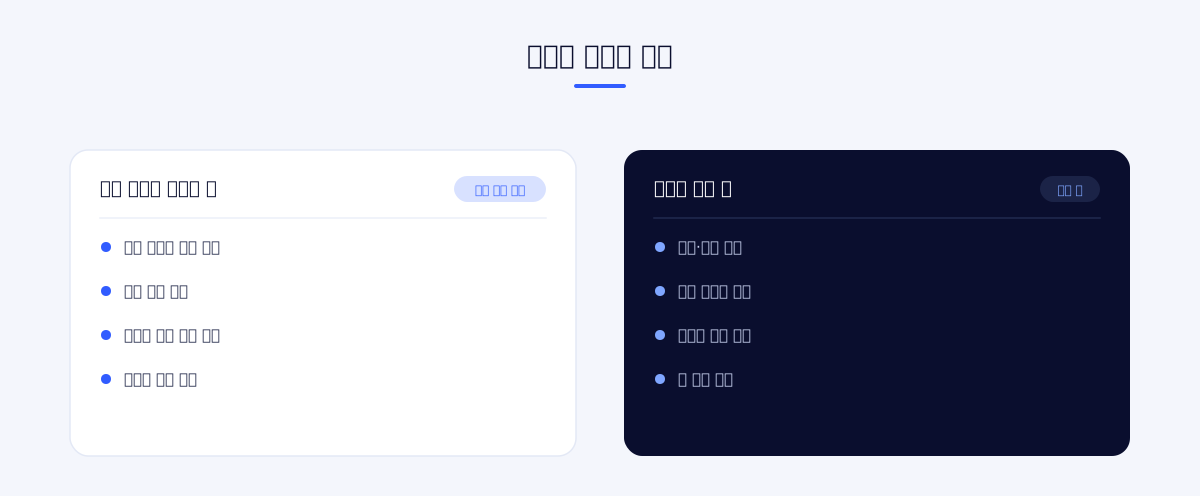
The collection kiosk controls the shredding unit directly, without going through the server. Communication quality differs at each installation site, and shredding must not stop at the moment the connection drops. Even if the server connection is lost, insertion and shredding continue, and when the connection is restored the results are sent again.
What the server handles is account verification and storing the results. For data that must appear as the same value on several screens, such as points, the value confirmed by the server is the reference. If the number on the kiosk screen and the number in the app differ, the user trusts neither.
Every device uses the same build
Installing a different version on each of more than 200 devices makes management impossible. From the start, the collection kiosk had two conditions: every device runs the same software, and updates are made without a site visit.
Values that have to differ per device are kept in settings, not in code. For the lodging kiosk, the branch code is entered once at installation, the kiosk receives an authentication token from the server, and after that it reads the branch-specific settings (screen composition, payment method) from the server again every time it enters the idle screen. There is no need to visit the device to change a setting.
Timing matters for remote updates
The lodging kiosk checks whether there is a new version when the app starts and every 60 seconds thereafter, and if there is, it downloads and applies it right away. Changes take effect quickly, but in exchange the screen may be refreshed while someone is in the middle of paying. So we deploy during hours when there are no users.
The update method is a choice between speed of rollout and risk of interruption. When a single line of wording has to be fixed on hundreds of devices, fast rollout is an advantage, and on devices where payment is involved, the deployment timing has to be decided together with it.
Hide the administrator entry point
The administrator screen must not be visible to ordinary users, and the person in charge must be able to get in without tools. On the test center kiosk, the administrator screen opens when the logo on the screen is tapped repeatedly within a short time and a password is then entered. The lodging kiosk also enters its settings screen by repeated taps on a specific spot. Simply not placing an "Administrator" button on the screen greatly reduces accidental operation.
Keep records inside the device as well
A problem that occurred on site is hard to reproduce there and then. All that can be checked later is the record. Each step of a device call and its return value, requests exchanged with external systems, and payment requests and results are kept inside the device. Payment records have an upper limit so that only the most recent entries are kept and storage does not fill up.
Record entries are divided so that it is possible to tell at which step things stopped. Rather than a single line saying "identity verification failed", the record has to show whether connecting to the equipment failed, whether the read failed, or whether it was an unsupported type of ID card, so that the cause can be narrowed down without going to the site.
7. What to decide before kickoff
We have organized the content so far into questions to check at the design stage.
Development order
- Were development devices secured before screen development?
- Was the device called on its own to check normal operation, failure and no response?
- Was the time a single operation takes actually measured?
Structure
- Do the screens make requests only through a defined channel, without calling the devices directly?
- Is it ensured that an error on the device side does not terminate the whole screen?
- Is the scope that has to be changed when a device is replaced with a different model defined?
Device signals
- Does every device call have a timeout?
- How is a new request handled when a request is in progress?
- Is there handling for the case where a lock is never released?
- Are duplicate signals and out-of-order signals filtered out?
Screen flow
- Are the current step and the transition rules defined in one place?
- Are exception situations separated from the normal path?
- Do screens that display personal information have an automatic return time?
Payment
- Is the terminal status checked before requesting approval?
- Is the handling defined for the case where approval went through but server registration failed?
- Can remote cancellation requests be received even while the connection is down?
- If reporting the cancellation result fails, where is it stored and when is it sent again?
Operation
- Do all devices use the same build, with differences kept in settings?
- Has the timing of remote updates been set so that they do not interrupt a screen in use?
- Does device control run to completion even if the server connection is lost?
- Can the records show which step failed?
Closing
In kiosk development, the screens are the output and the devices are the premise. Only when you know how long a device takes, how it fails and what happens when it does not respond can the screens be designed on top of those conditions.
There is one thing we confirmed repeatedly across the three projects. Once you drop the assumption that a device always responds, the structure is determined. Apply timeouts, separate processes, hand ambiguous results over to a person, and store results that could not be sent and send them again. Whether there are five screens or ten, the amount of work in this part does not shrink.
We have developed and operated kiosks with different devices attached, such as identity verification equipment, shredding units and payment terminals. If you are preparing an unattended system that includes hardware integration, please feel free to contact us.
Related reading
- What Takes Longer Than Development in a Kiosk Project — A Checklist for Building Unattended Systems
- Where Failures Occur in External System Integration — Interface Design Principles
- What It Means to Operate IoT Systems Installed in the Field — Disconnection, State Mismatch and Remote Management